


Quick and easy ways to print quizzes
FlexiQuiz is a free online quiz maker that allows you to print quizzes for students to complete offline, or print copies of your questions and answers for review and reference.
Printed quizzes are perfect for classroom activities, homework, paper-based assessments, or situations where internet access is limited.
Please note that quizzes completed offline need to be marked manually. However, you can still record learners’ scores in your FlexiQuiz account for future tracking and reporting.
How to Print Your Quiz
- Log in to your FlexiQuiz account and create your online quiz, test, or exam.
- From the Create screen, click Print in the top-right corner of the page.
- Make sure your printer is connected, adjust your print settings if needed, and select Print.

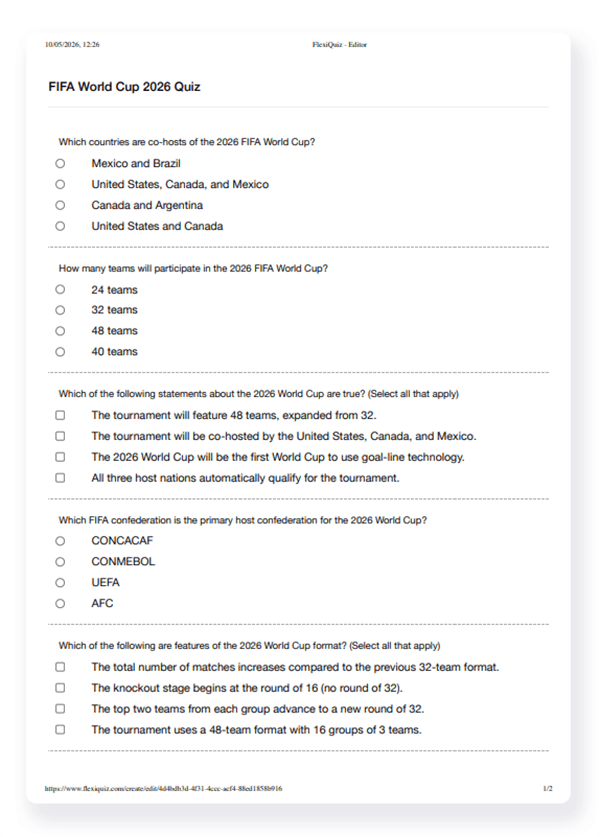
Your quiz is now ready to share with your learners. The image below shows an example of a printed quiz.
Features Not Available When Printing Quizzes
Some online-only features are not supported in printed quizzes, including:
- Question banks
- Question randomization
- File upload questions
- Single-choice drop-down questions
- Videos, audio and background themes
- Progress bars
- Time limits
- Other interactive tools that require an internet connection
How to print copies of your questions and answers
- Log in to your FlexiQuiz account.
- Create and Configure your online quiz.
- Complete the quiz as a test-taker. When taking the test, it does not matter whether your answers are correct or incorrect. If the questions are not marked as required, you may be able to move quickly through the quiz and submit it straight away.
- Then go to the Analyze screen.
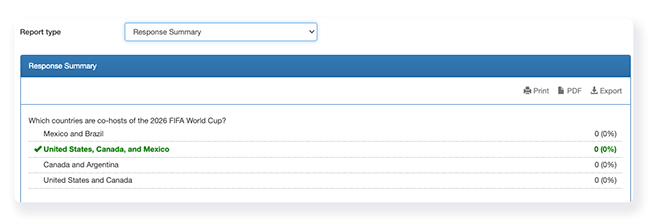
- Next to Report type, select Response Summary. This report displays all the questions from the quiz along with the correct answers.
- Now choose if you want to print the report as an Excel file or PDF.
Relevant help guides:
How to manually score your quiz
Ways to analyze your quiz results
Back


